Best Photo for a Dame Hombro AI Video: Full Guide
Pick the best photo for a Dame Hombro AI video. Learn about lighting, framing, file formats, face visibility, and the duet setup in one practical guide.
Dame Hombro AI editorial team · Updated October 8, 2026
What Makes the Best Photo for a Dame Hombro AI Video
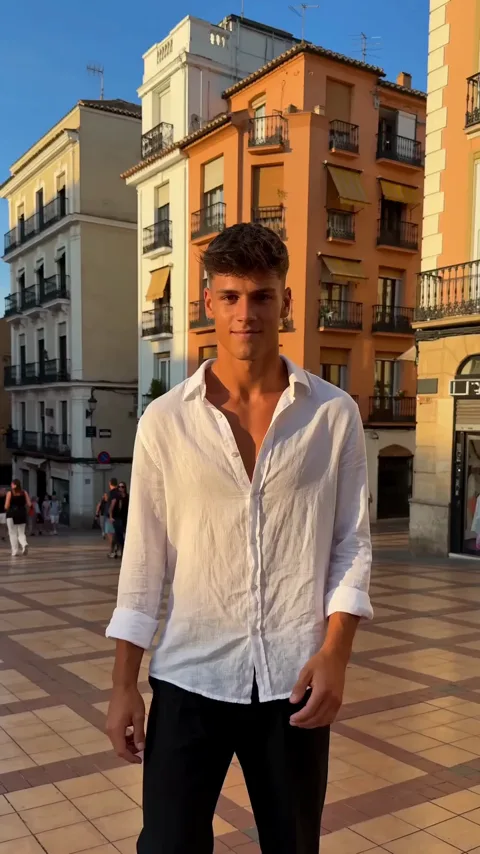
The best photo for a Dame Hombro AI video is a sharp, front-facing portrait of one adult with even lighting, a clearly visible face, and no other people in the frame. That single image is what the model copies, so the quality of your photo sets the ceiling on the quality of your clip, and a clean source almost always beats a busy one.
You do not need a professional camera. A modern phone photo taken in good light is more than enough, as long as the face is clear and unobstructed. This guide explains what the model actually reads from your file, how to prepare lighting and framing, and which images to avoid.
The Five Things the Model Reads From Your Photo
When you upload a photo, the model does not simply copy a face. It builds an entire performance from several signals at once.
| Signal | What it drives | How to get it right |
|---|---|---|
| Face | The likeness and expression | Keep the face large, sharp, and unobstructed |
| Hair and head shape | How the head reads through the motion | Avoid hats and hard shadows on the forehead |
| Body proportions | How the figure moves and stands | Prefer a waist-up or full-body shot |
| Clothing | The outfit carried into the render | Choose simple, high-contrast clothes |
| Background | The depth behind the performer | Use a plain wall or an uncluttered space |
Lighting and Framing Rules
Soft, even light is the single biggest improvement you can make. Stand facing a window during the day, or use a bright room with the light on your face rather than behind you. Avoid strong backlight, which turns the face into a dark silhouette, and avoid harsh direct flash, which flattens skin and creates hard shadows.
Framing matters almost as much as light. A head-and-shoulders portrait works well for solo scenes, while a waist-up or full-body shot gives the model more information about posture and movement. Keep the camera at eye level and hold it steady. If you want a specific mood, such as a golden-hour look or a rain-soaked street, describe it in the text field instead of building it into the photo, because the model can act on written direction more reliably than on heavy styling.
Photo Checklist Before You Upload
Walk through this list once and you will avoid most weak results.
- The photo shows one adult face, clearly visible and not covered.
- The lighting is even, with no dark shadow across the face.
- The image is sharp, not blurry, shaky, or heavily filtered.
- The frame is not cropped through the top of the head.
- The background is simple rather than crowded with people.
- The file is a JPG, PNG, or WebP within the size limit.
- You have permission from the person shown in the photo.
If you are building a duet, repeat the same list for both performers and upload two separate images.
Solo Photos, Duet Photos, and Text Only
Different scenes need different inputs, so match the photo to the format you want.
| Format | Photos needed | Best source image |
|---|---|---|
| Solo | One photo of one adult | Front-facing portrait, waist up or full body |
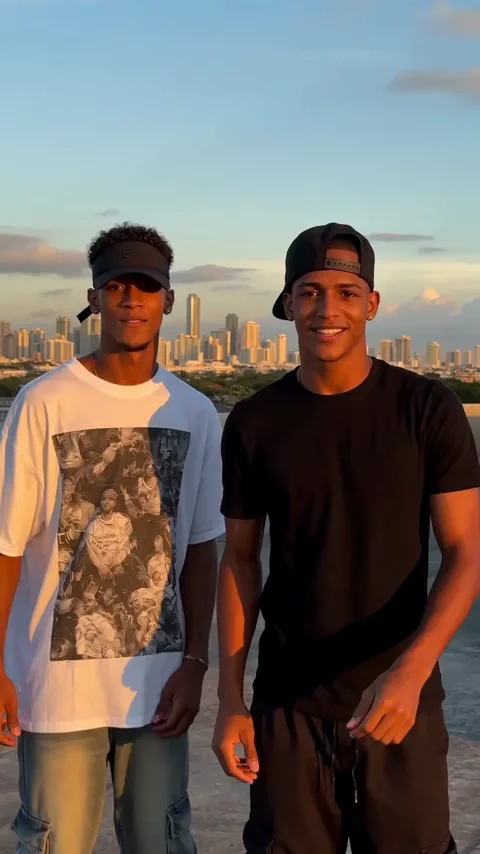
| Duet | Two separate photos, one per performer | Matching framing so both figures read at the same scale |
| Text to video | None | A clear written description of the scene |
For a duet, try to match the two photos in framing and lighting. If one performer is shot against a bright window and the other in a dim room, the generated clip will pick up that mismatch. For text-only scenes, describe the performer, the outfit, the setting, and the light in plain words.
What Not to Upload
Group photos are not supported, and neither are images where the main face is tiny, turned away, or hidden behind a mask, sunglasses, or hair. Screenshots of other videos tend to be low quality and often fail moderation, and cartoon or heavily illustrated images do not give the model the human detail it needs for a realistic performance. Avoid any image you do not have the right to use, and only upload adults who have agreed to appear. Adult content is rejected, and moderation checks the uploaded photo as well as the prompt and the finished video.
Fixing a Photo That Produced a Weak Result
If a render comes back looking off, the fix is almost always in the source image. Blurry faces produce blurry results, and heavy in-app filters confuse the likeness. Re-shoot in daylight, fill the frame a little more, and remove distractions behind you. If the outfit came out wrong, simplify it to one or two strong colors. If the motion looked strange in the hands, that is a normal limit of AI video rather than a problem with your photo, so keep the pose relaxed and the arms uncluttered. Credits from a failed job are returned automatically, and you can resubmit with a better image once you have adjusted it.
Privacy and Consent
Your uploaded photos are private to your account and are not shown to other users, and your results stay private as well. Even so, treat every upload with care: use your own photo or one you have permission to use, and never upload a picture of someone who has not agreed. If you want to read the detail, the privacy policy explains how images are stored and the terms of service sets out the rules for uploads. For a full walkthrough of the flow from upload to download, see the step-by-step how-to guide.
FAQ
How many photos do I need?
One for a solo video, two separate photos for the duet scene, and none at all if you use text-to-video. Group photos are not accepted as input.
Can I use a selfie?
Yes. A sharp selfie taken in good light works well, as long as the face is clear, the camera is at eye level, and nothing covers the features.
What file types are accepted?
JPG, PNG, and WebP. Very large files may be refused, so compress the image if the upload stalls, and avoid sending a screenshot of another photo.
Why did my photo get rejected?
The usual causes are a missing or unclear face, more than one person, a child in the frame, or adult content. Fix the source image and try again.
Do my photos stay private?
Yes. Your uploads and your generated videos are private to your account and are not shared with other users.
To see what a render costs, check the pricing page, and read more about the project if you want the background on the trend and the tool.